


How to: Use price calculation rules
This guide shows how to choose Calculate from rules under Price input, add rules, and check the final price before creating a listing.
Last updated: July 28, 2026
Calculate a price from rules
- Use a set of rules to calculate the listing price in real time. This experimental feature is available only to selected users. Check the calculated final price before you create each listing.
What you need
- A Showchase account that has been selected to use price calculation.
- The base price and every charge or percentage you want to add.
How rules are applied
- Order matters: Rules run from top to bottom. Use the arrows in Manage rules to put them in the order you need.
- Use the summary: The summary shows the price after each rule. Its bold final price appears below the divider, so you can check the result before you create the listing.
Steps
-
Open a new product listing
Open My Page and choose List a product. The image manager opens first for a new listing. Choose Finish if you are not adding images yet, then continue to the product form.
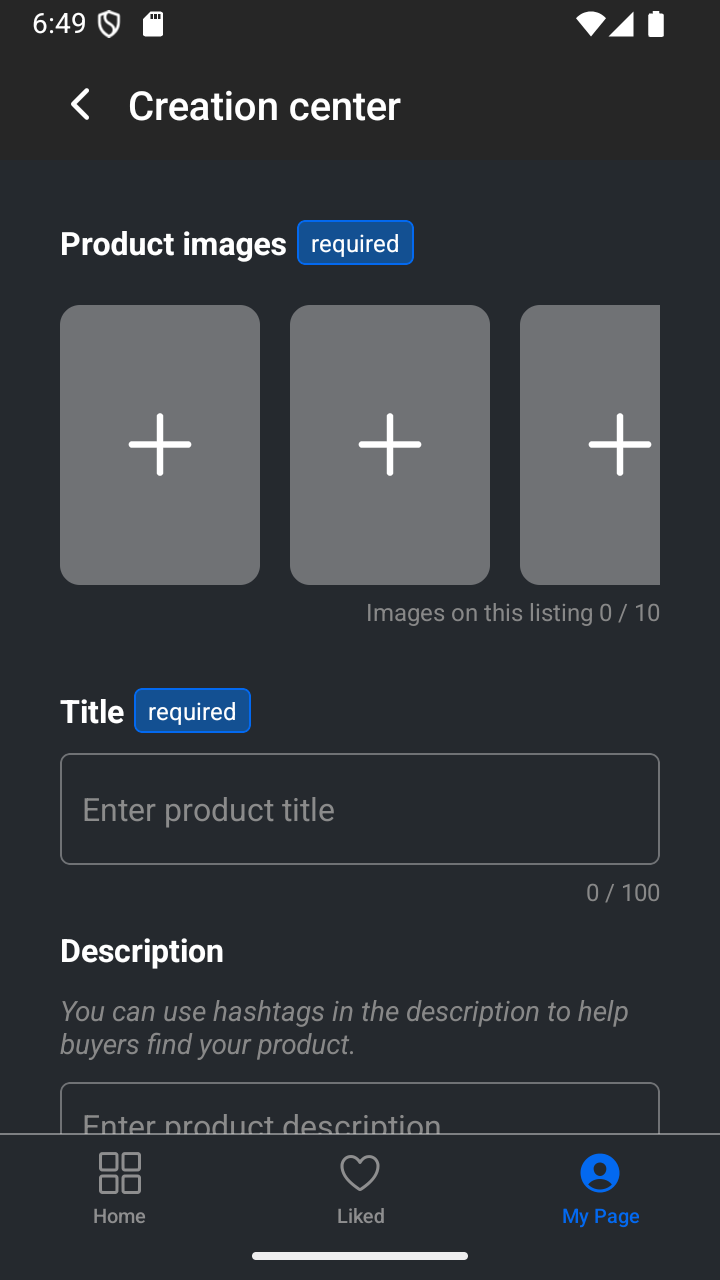
The product form opens after you finish or dismiss the image manager. -
Choose rule-based calculation
Scroll to Pricing data and choose Calculate from rules under Price input. This experimental option is visible only to selected users. Enter a base price; the rule summary appears below it and updates the final price as you configure rules.
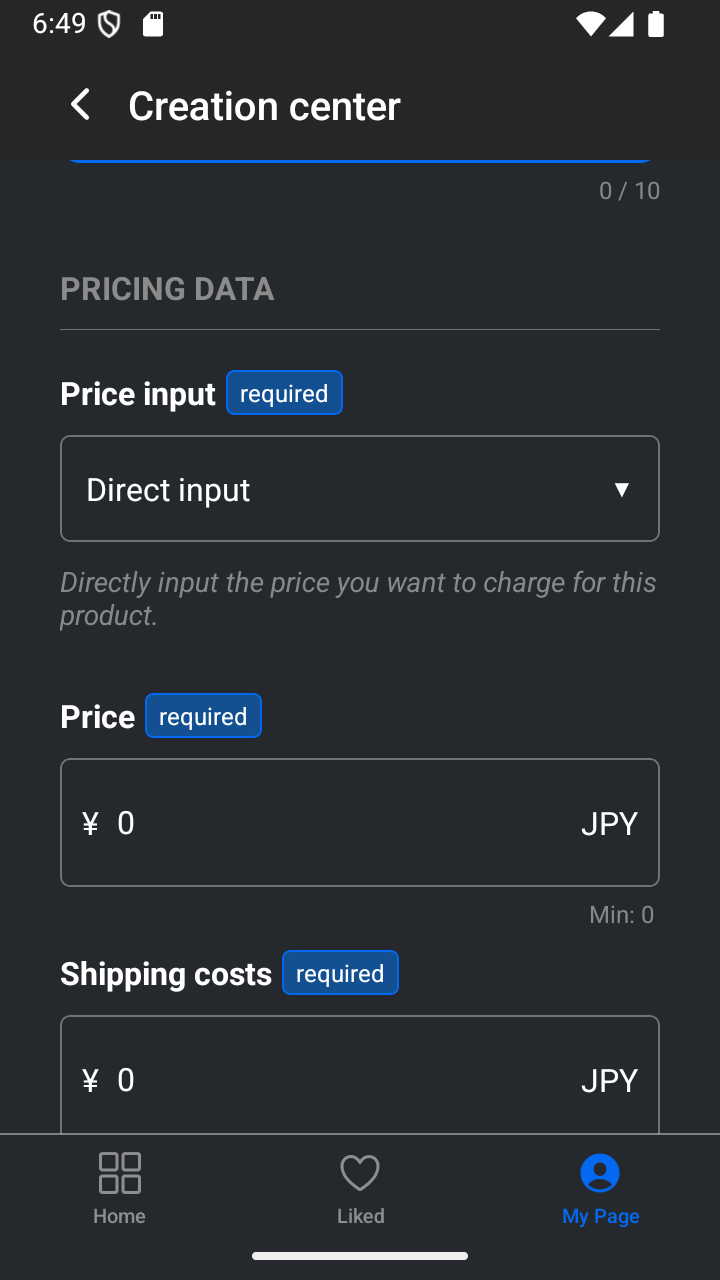
Direct input lets you directly input the price you want to charge. Choose Calculate from rules to use the experimental rule manager. 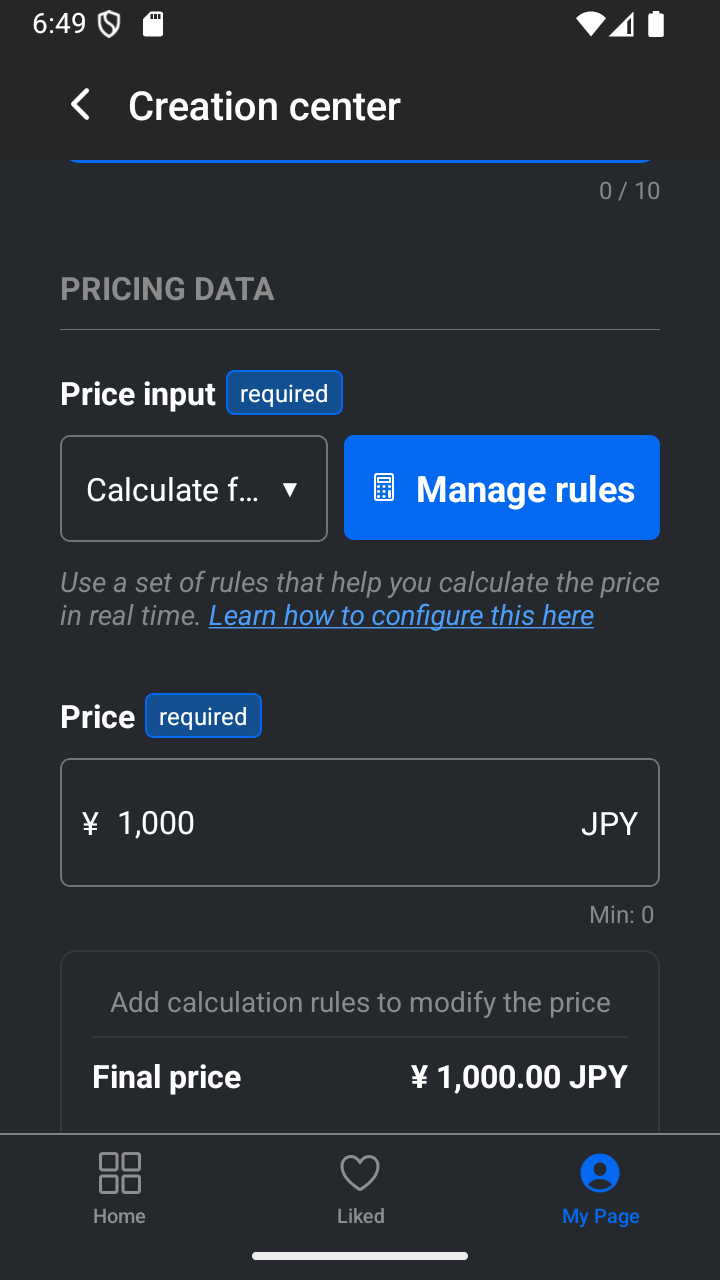
Enter a base price. The bold final price is always shown below the divider. -
Add a fixed amount rule
Choose Manage rules, then choose Add rule. Fixed amount is selected first. Give the rule a clear name if needed and enter the amount that should be added in the listing currency. Use Delete to remove a rule you were only trying before you continue.
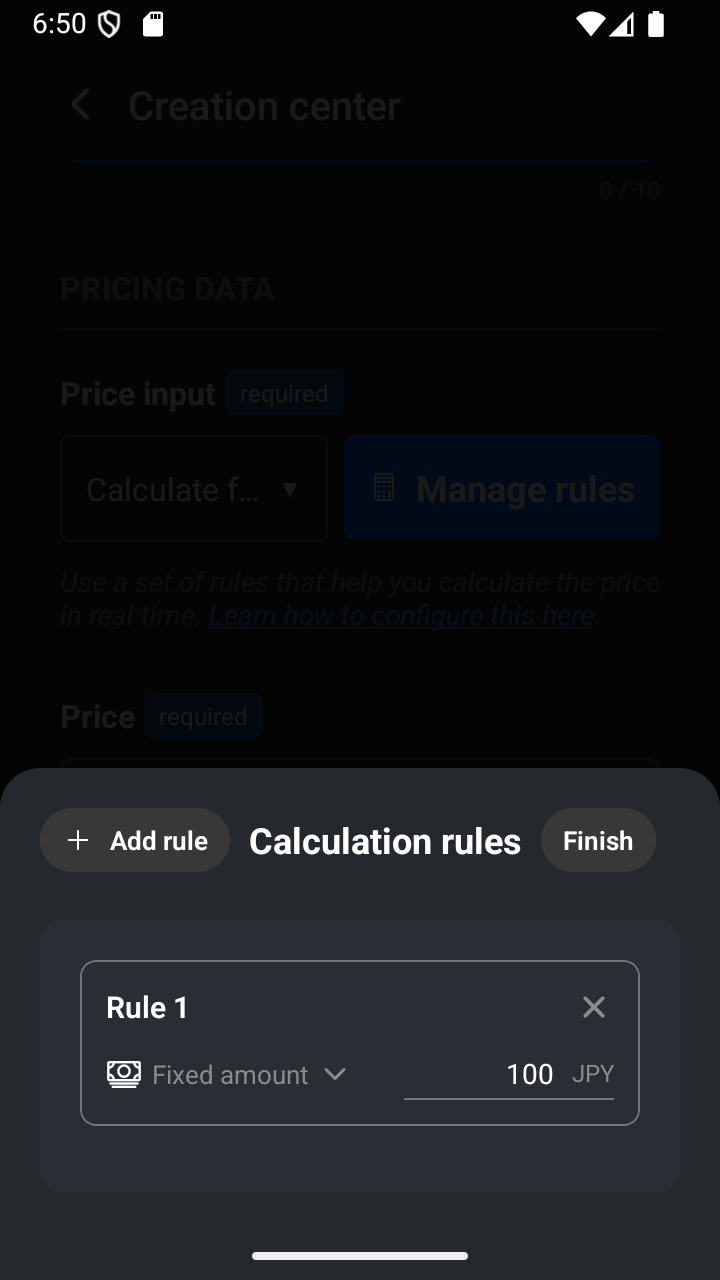
A fixed amount adds the entered currency amount to the current price. -
Add a percentage rule
Choose Add rule again. Open Fixed amount on the new rule, select Percentage, and enter the percentage to add. The percentage is calculated from the amount after every rule above it. Use Delete if this was only a trial rule.
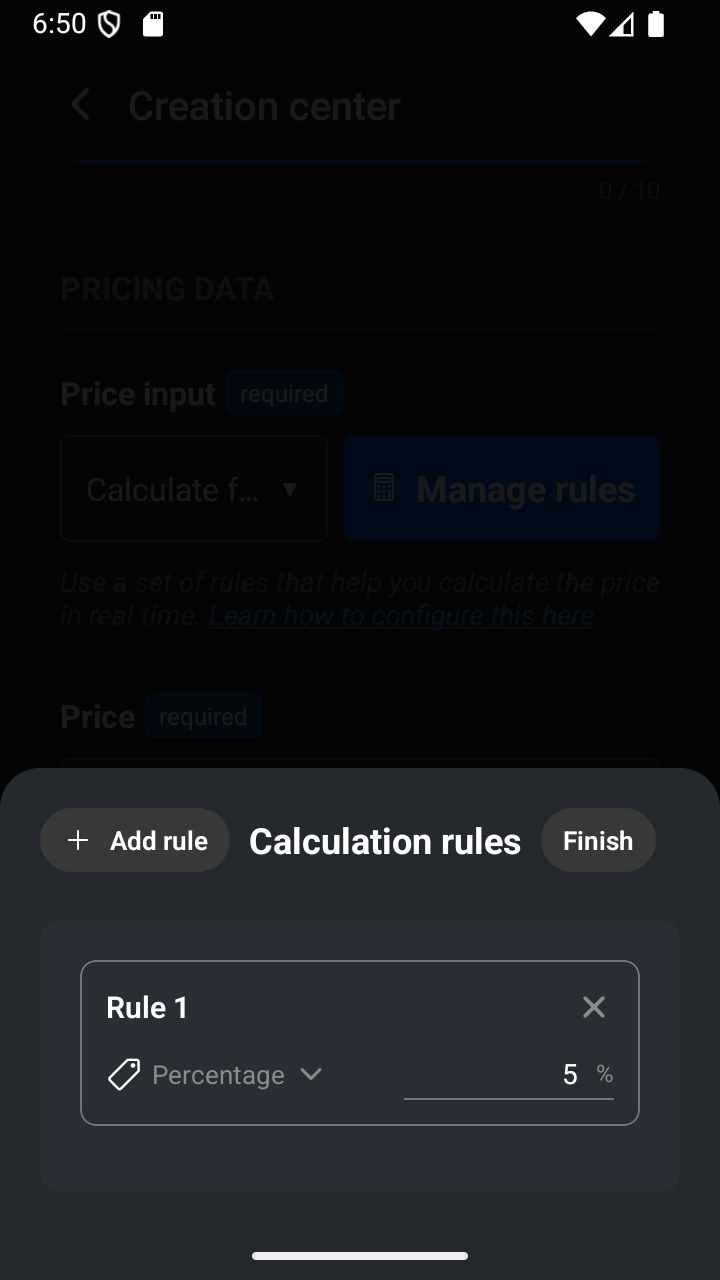
A percentage adds part of the current amount, so its position changes the result. -
Add a round-up rule
Add another rule, open its type, and select Round up. This rule has no amount field. It rounds the current price up to the next whole amount. Use Delete if you do not need it in the final set.
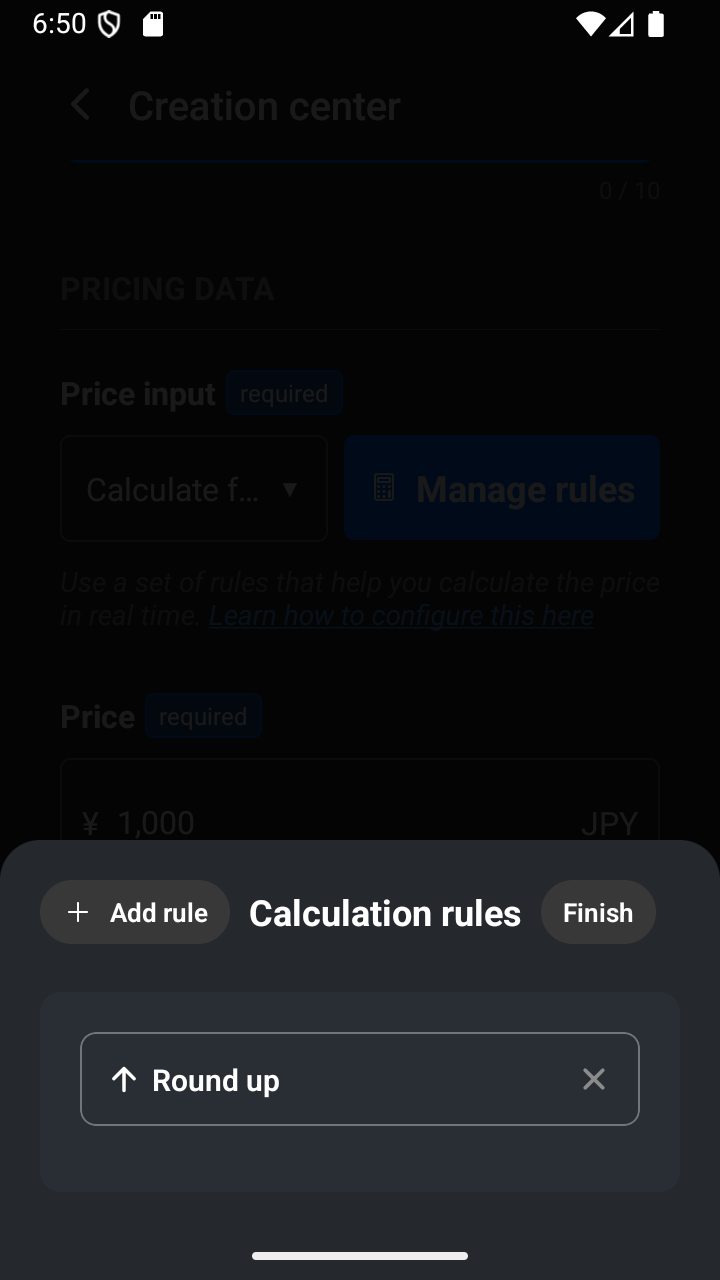
Round up removes decimals by increasing the current amount to the next whole amount. -
Add a round-down rule and check the result
Add one more rule, open its type, scroll to Round down, and select it. It has no amount field and rounds the current price down to a whole amount. Then remove any trial rules and build the set you need. For example, add fixed Earnings, Percentage Taxes, fixed Shipping materials, and Round up. Choose Finish, then check each result and the bold final price in the summary.
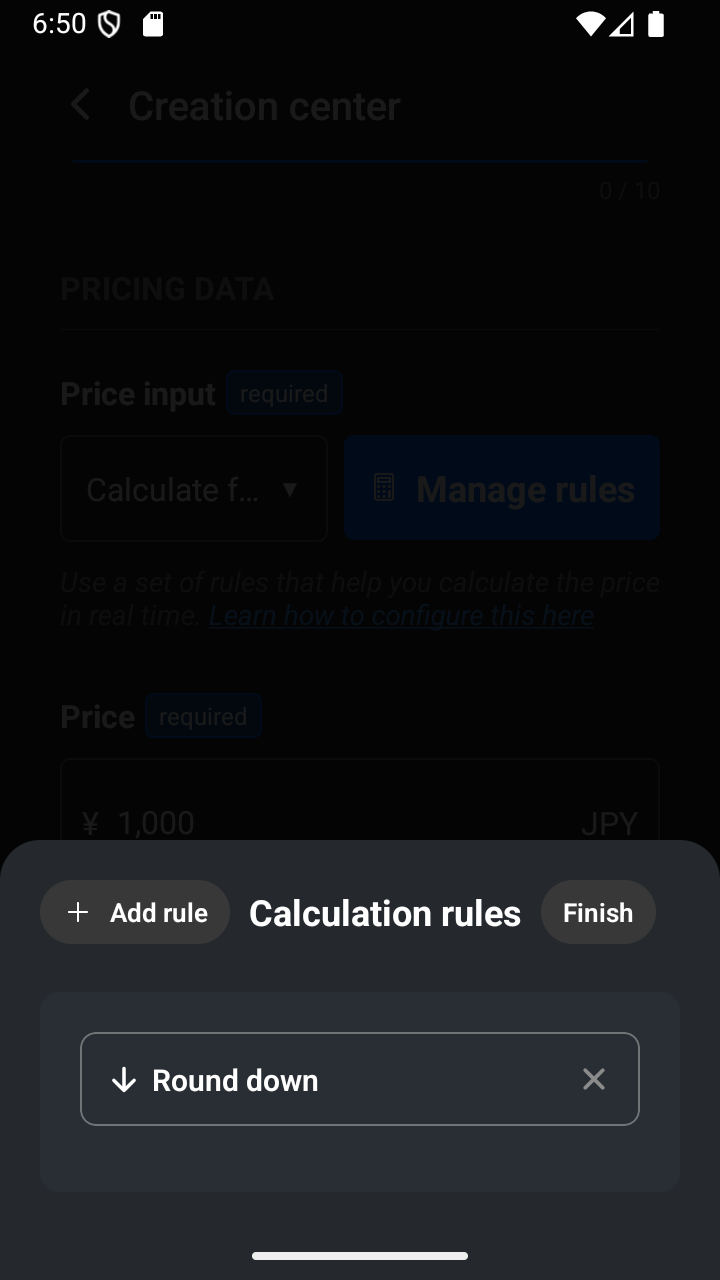
Round down removes decimals by decreasing the current amount to a whole amount. 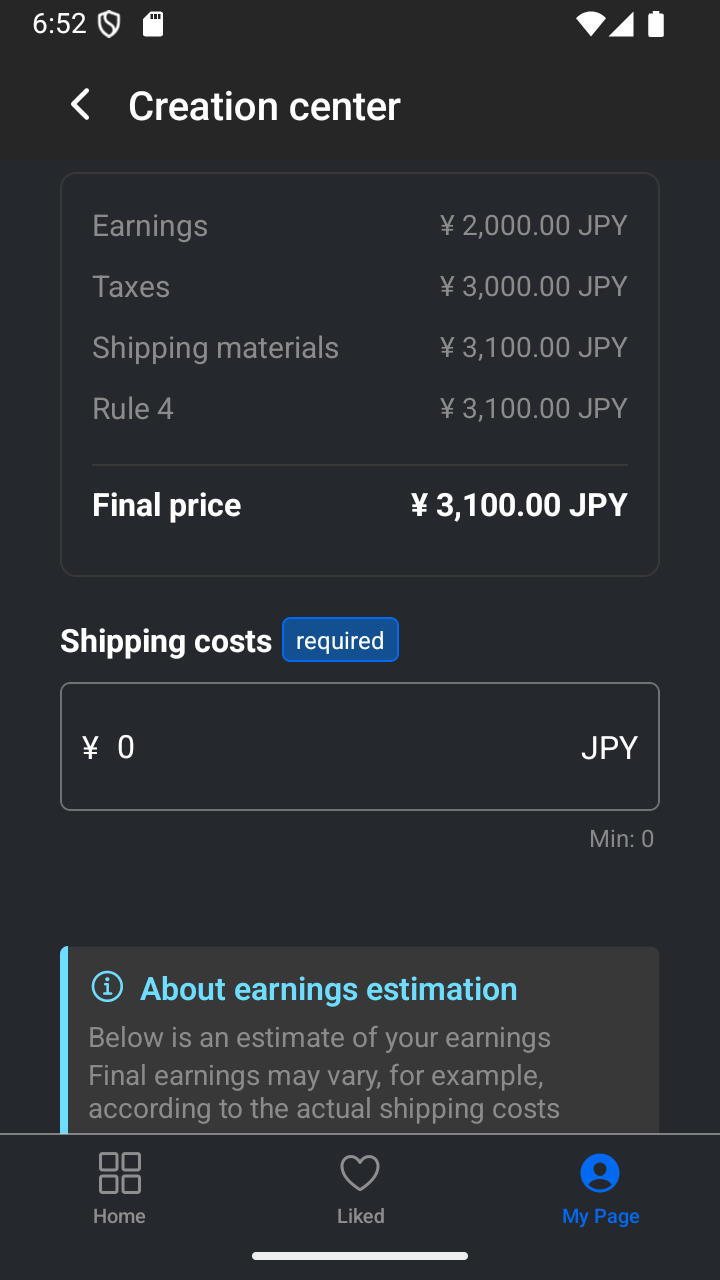
Review each calculated result and the bold final price before you continue.
Check the final price before you continue
The final price changes whenever you change the base price, a rule value, or the rule order. Check the summary before you add shipping costs and submit the listing. You can save Calculate from rules and its rules in a product listing template to prefill them on new listings.
— The Showchase team