


How to: Create a product template
This guide shows how to use a product listing template for new listings, choose the details to reuse, and save changes.
Last updated: July 28, 2026
What is a product template?
- A product template saves details you often use so they are ready when you create a new listing. It saves time and helps keep similar listings consistent.
What you need
- A signed-in Showchase account.
- The listing details you want to reuse, such as a title pattern, condition, shipping cost, or categories.
- Time to review the template before you save it.
Steps
-
Open your product template
Sign in, open My Page, then open Templates and choose Product listing template. The switch is off when new listings should start blank.
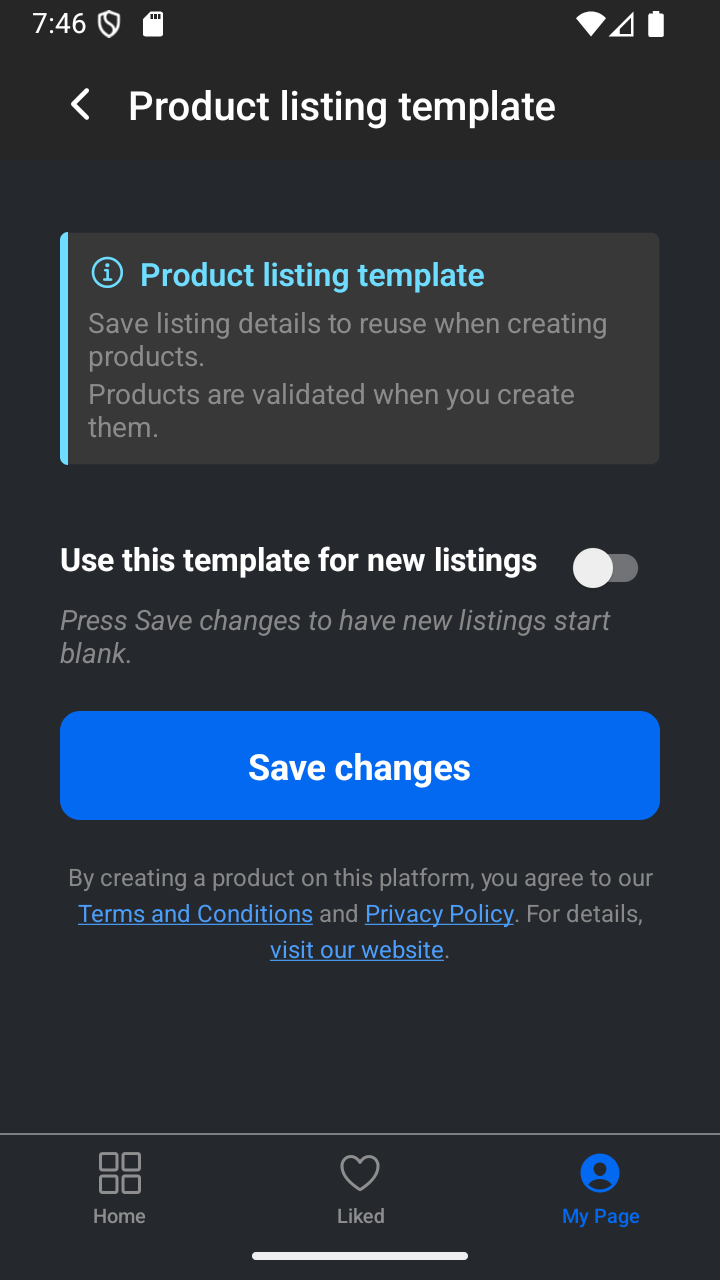
When the switch is off, new listings start without this template. -
Turn on the template
Turn on Use this template for new listings. The template fields appear so you can choose the details to prefill on future listings.
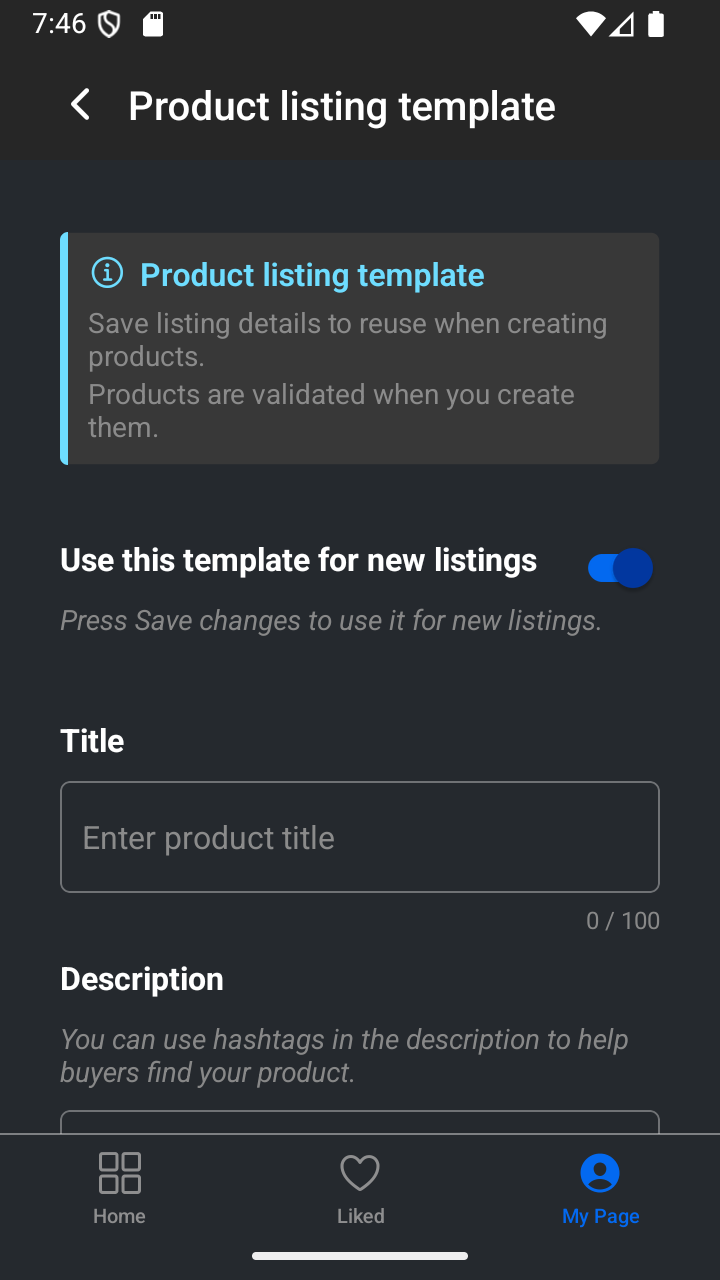
Turn the switch on to edit the details that future listings can reuse. -
About calculated price
In Pricing data, choose Calculate from rules under Price input. Choose Manage rules to add, change, or reorder the rules saved with this template.
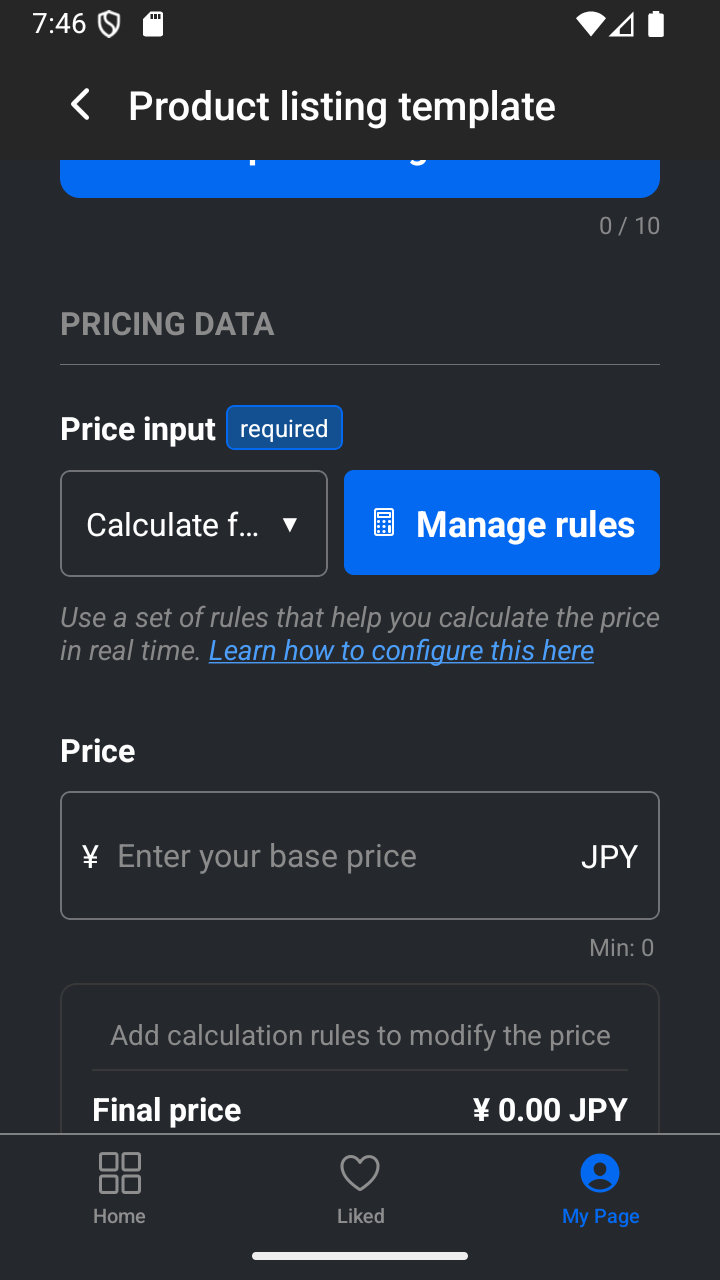
Choose Calculate from rules to save a reusable rule-based price input in the template. -
Fill the details and save
Fill only the details that should be reused, such as title, description, condition, categories, Price input, price, shipping cost, or calculation rules. Scroll to the bottom and choose Save changes. Changes, including the switch, are not saved until you choose this button. If you try to leave first, choose OK to continue editing or Go back to leave without saving.
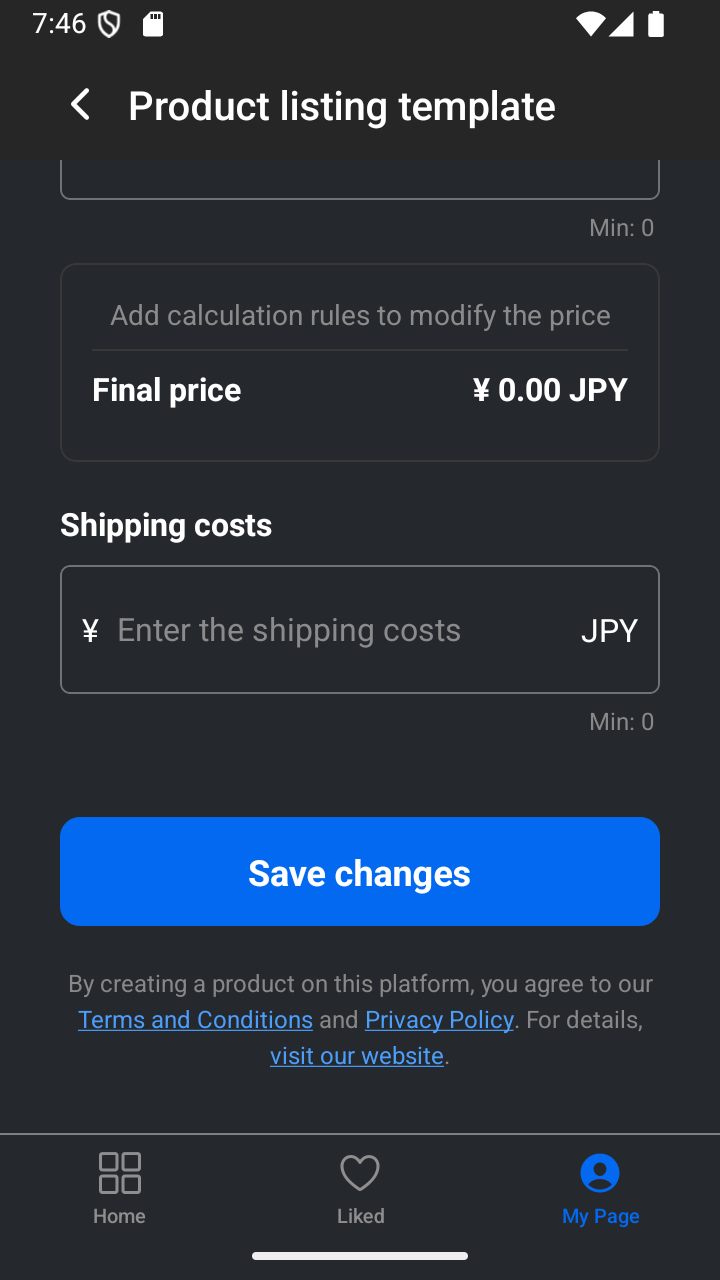
Choose Save changes to persist the switch and every detail you changed.
Reuse the details that save you time
Your saved template fills matching details when you start a new listing. Review every prefilled value and change anything that does not fit the product you are creating.
— The Showchase team