


How to: Categories (games, sets, products)
This guide shows how to make clear pages for a game, one of its sets, and one product in that set.
Last updated: July 24, 2026
What you need
- Sign in to your Showchase account.
- Choose the printing language before you create the game. It is the language used for the category's main name; use English for this sample.
- You need editor access to create categories and add their details.
- If you add a game image, use a clear image that you are allowed to share.
What this tutorial is about
- A category is a page with a name. It puts related things together, so people can find them and see how they connect. In Showchase, categories link a game to its sets and products. This guide shows the right order to make them.
What you will achieve
- You will learn how to make three connected categories: a game, a set inside the game, and a product inside the set. The names in this guide are only examples. Use real names only when the information is correct.
Example use case
- Imagine you want to add a new trading card game. First, make the game page. Next, add each real card release as a set. Then add the products in that set. In this example, Showchase TCG has Base collection (vol 1), and that set has Koko the collector.
How the category hierarchy works
- Game: A game is the main page for a trading card game or brand. Make the game first. Its sets and products go under it.
- Set: A set is one card release or collection inside a game. In this example, Base collection (vol 1) is a set in Showchase TCG.
- Product: A product is one item inside a set. Koko the collector goes in Base collection (vol 1), not straight under the game.
Optional names in another language
- Translations are optional. Open Translations and add every name you know is correct. This helps people find the same category in the languages they use. Do not guess a translated name.
Before you create anything
- Search first. Someone may have already made the game, set, or product.
- Make the larger group first: Game, then Set, then Product.
- Showchase TCG, Base collection (vol 1), and Koko the collector are made-up samples. Only make real categories when the name and details are correct and complete.
Game image
- For the Showchase TCG game, open Wiki details. Scroll to Game image, then tap the + below it. Choose a clear square logo from your device gallery that you are allowed to share. An image is optional, but it helps people spot the game.
Wiki details
- Wiki details add useful facts to the category page. For a set, add its release date and set code. For a product, add its card code. Only add facts you know are correct.
After your category is approved
- Our team reviews new categories. After the category is approved, its Wiki entry becomes available. You can then open it to add or improve the full Wiki information.
Steps
-
Open search and find the game grid
On the Home tab, tap the search bar. The Browse by game grid appears. Check that the real game is not already there before you make it.
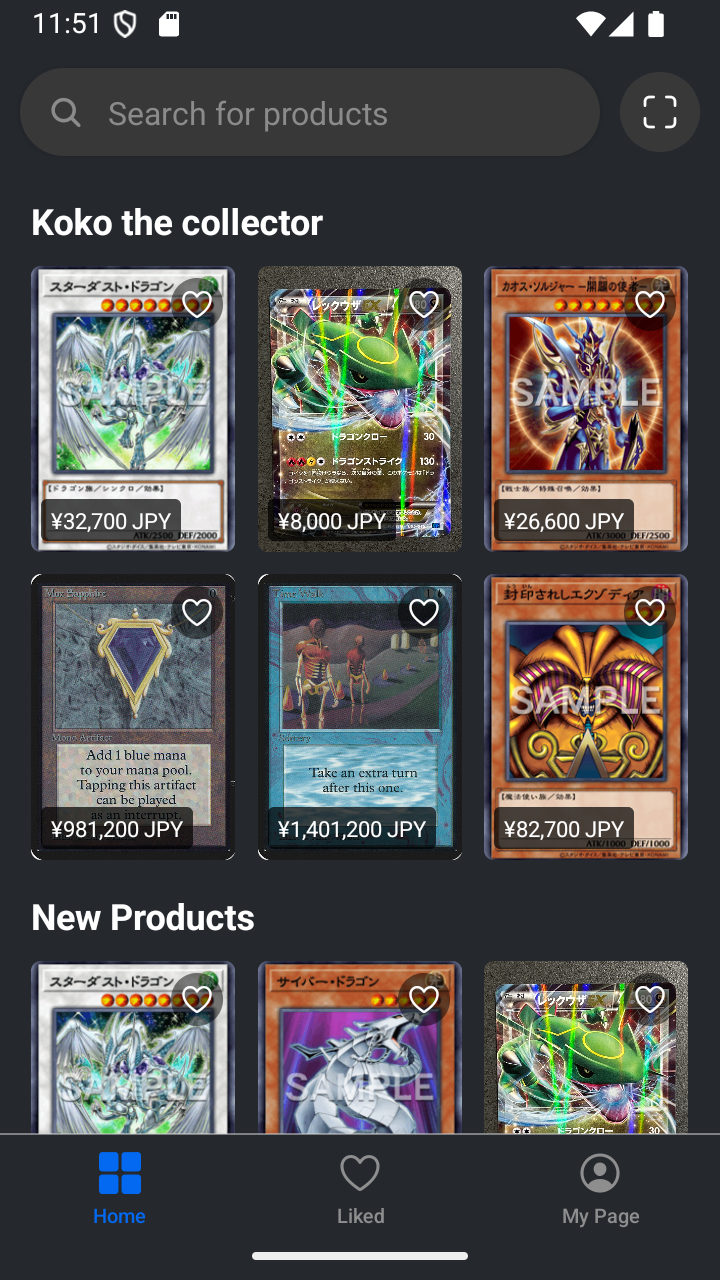
Start on Home and tap the search bar. 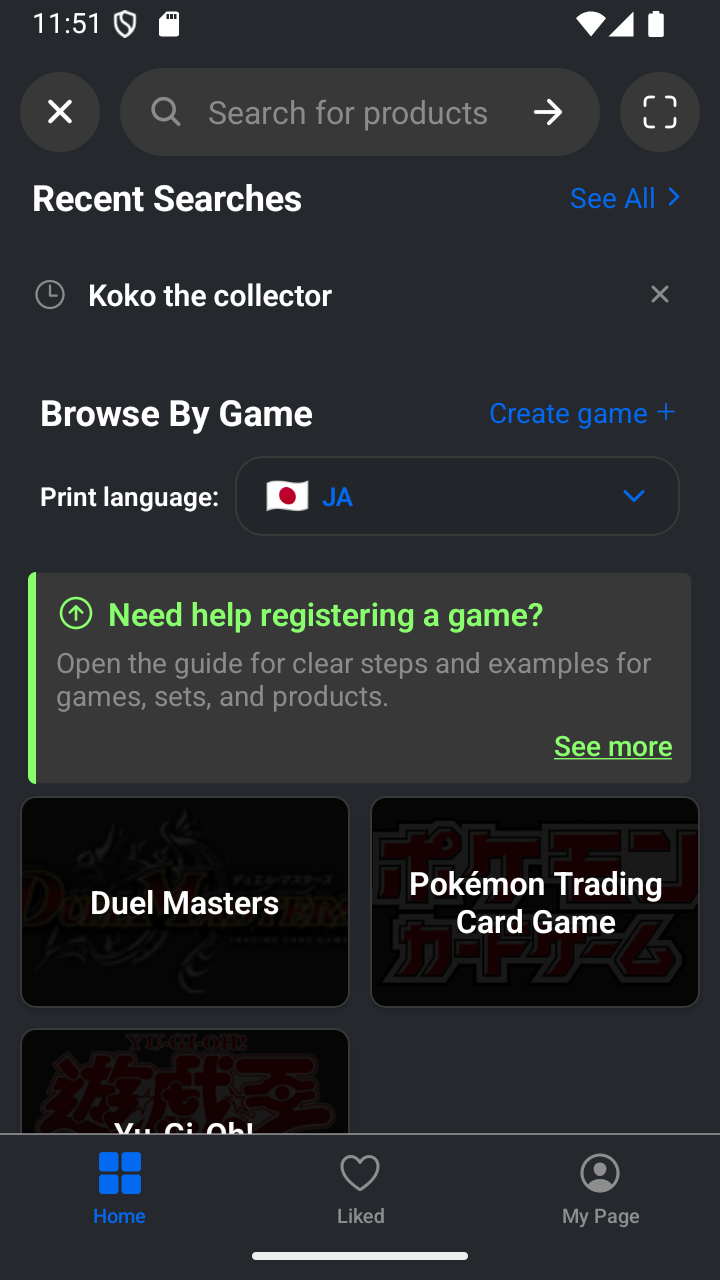
The game grid appears after opening search. -
Choose the printing language
Tap Print language and choose the language used on the real cards. In this example, choose EN for the English sample name.
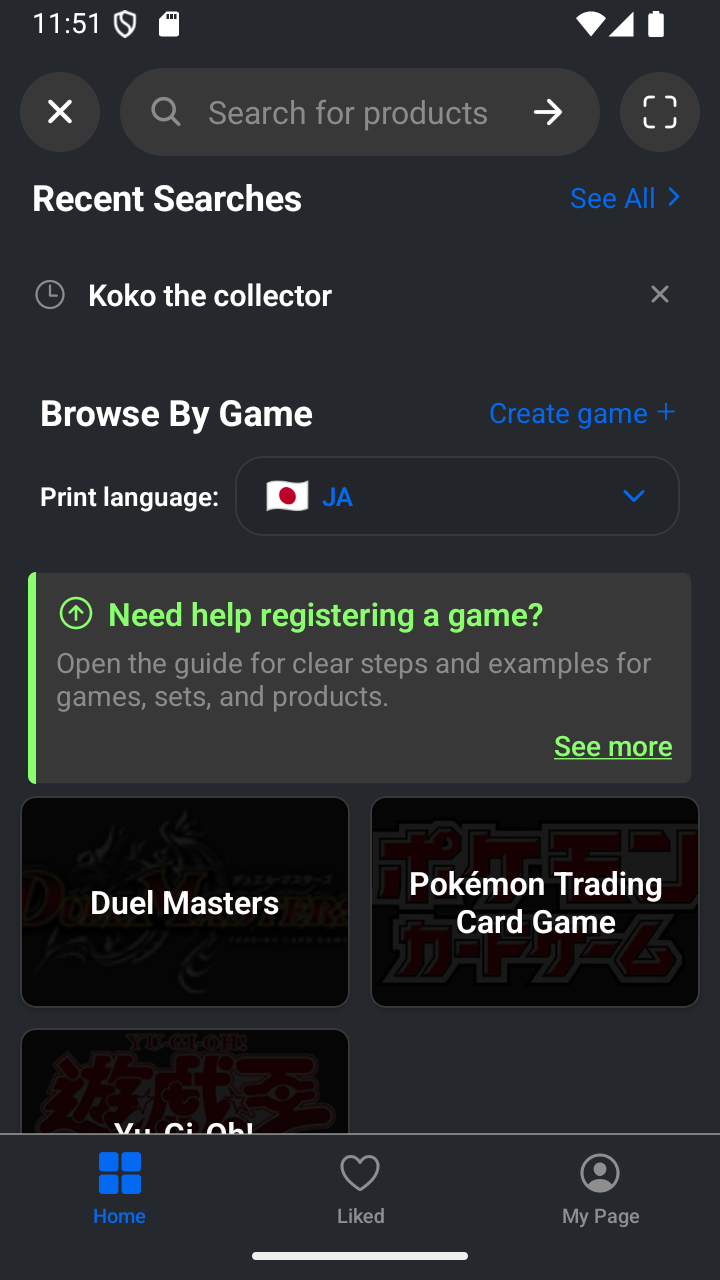
Tap Print language. 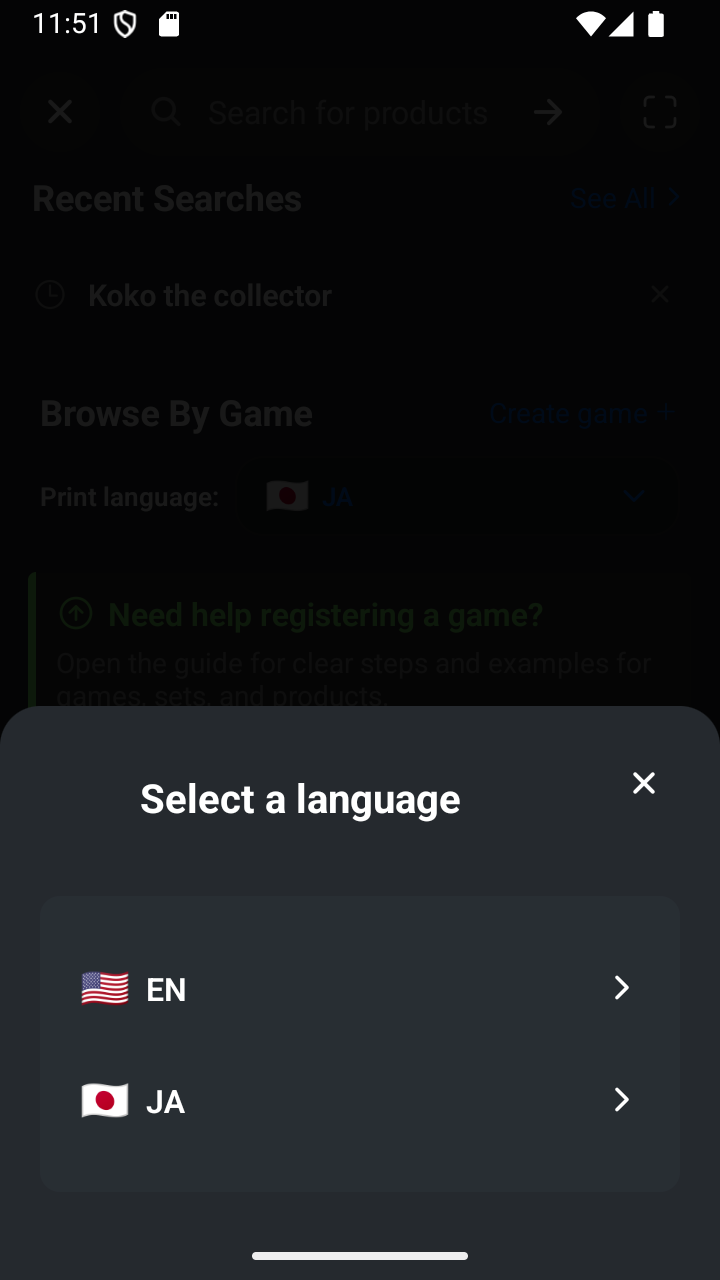
Choose EN from the language menu. 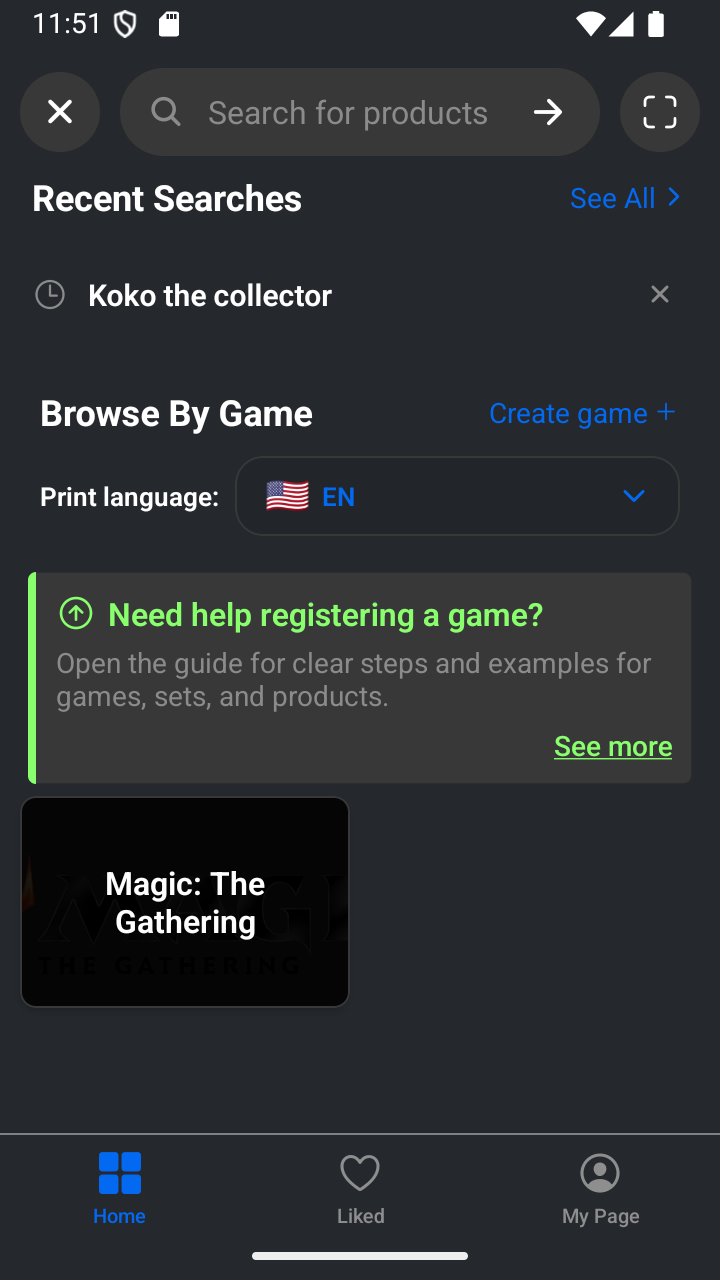
EN is now selected. -
Create a game
Tap Create game. Type the name of the game; in this example, use Showchase TCG. In Translations, you can add every correct name in another language. Open Wiki details. Scroll to Game image, then tap the + below it and choose a clear logo from your device gallery that you are allowed to share. Then tap Create game category.
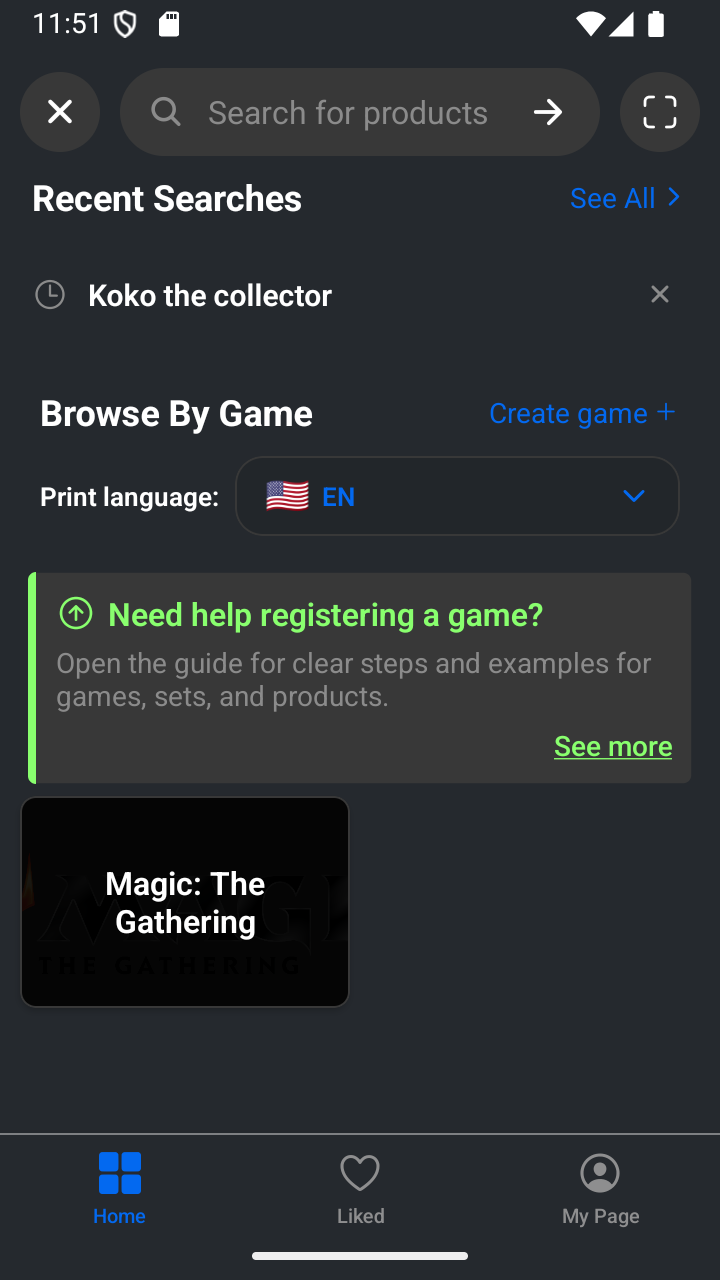
Tap Create game. 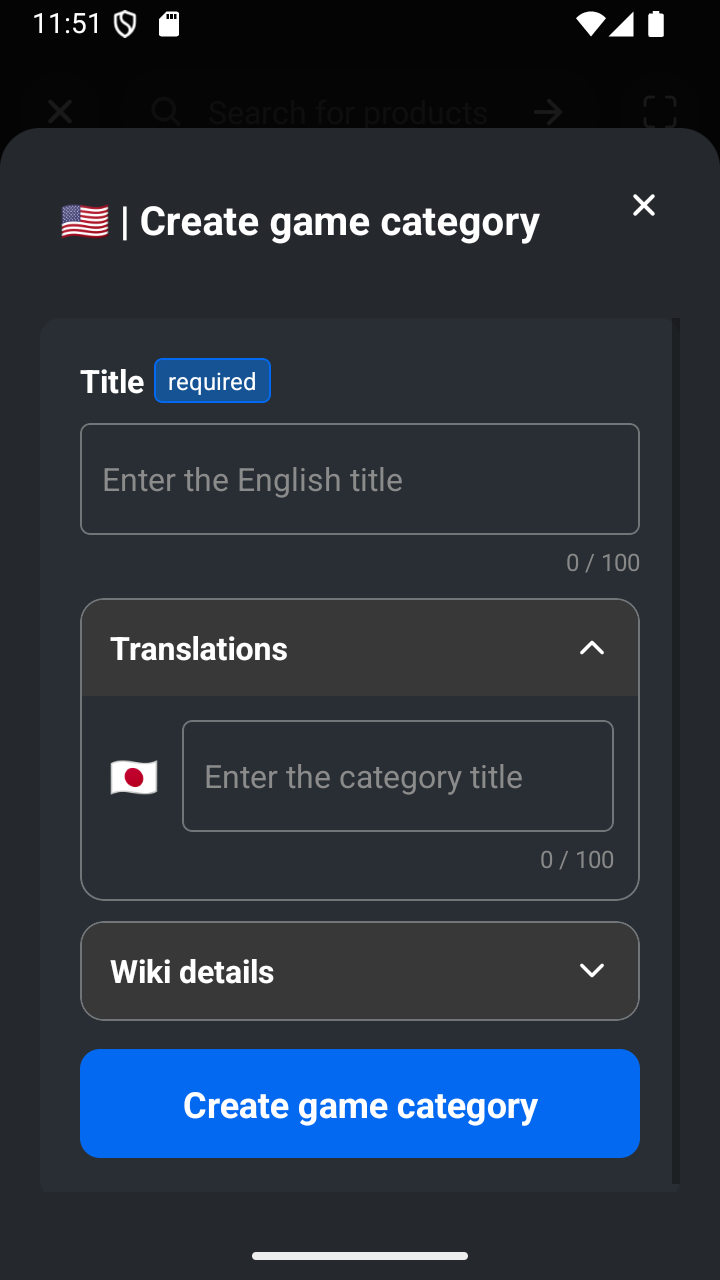
The game form opens. 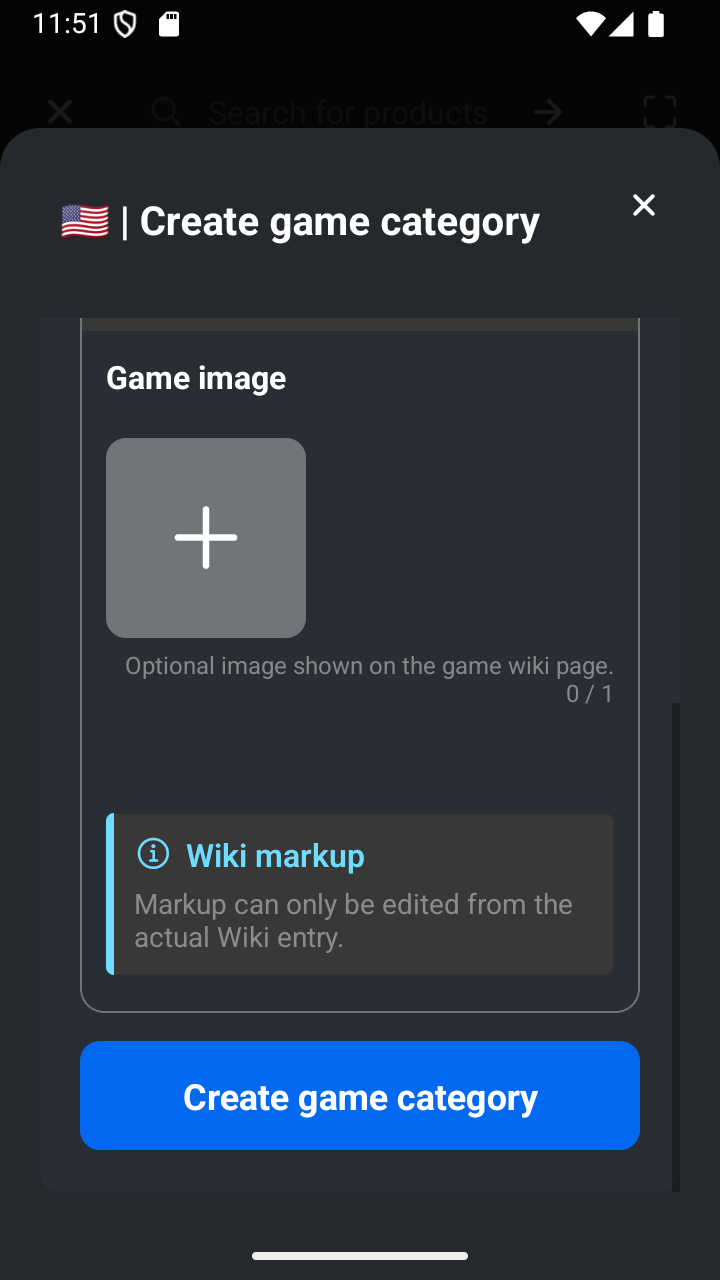
Add the game name, then open Wiki details. 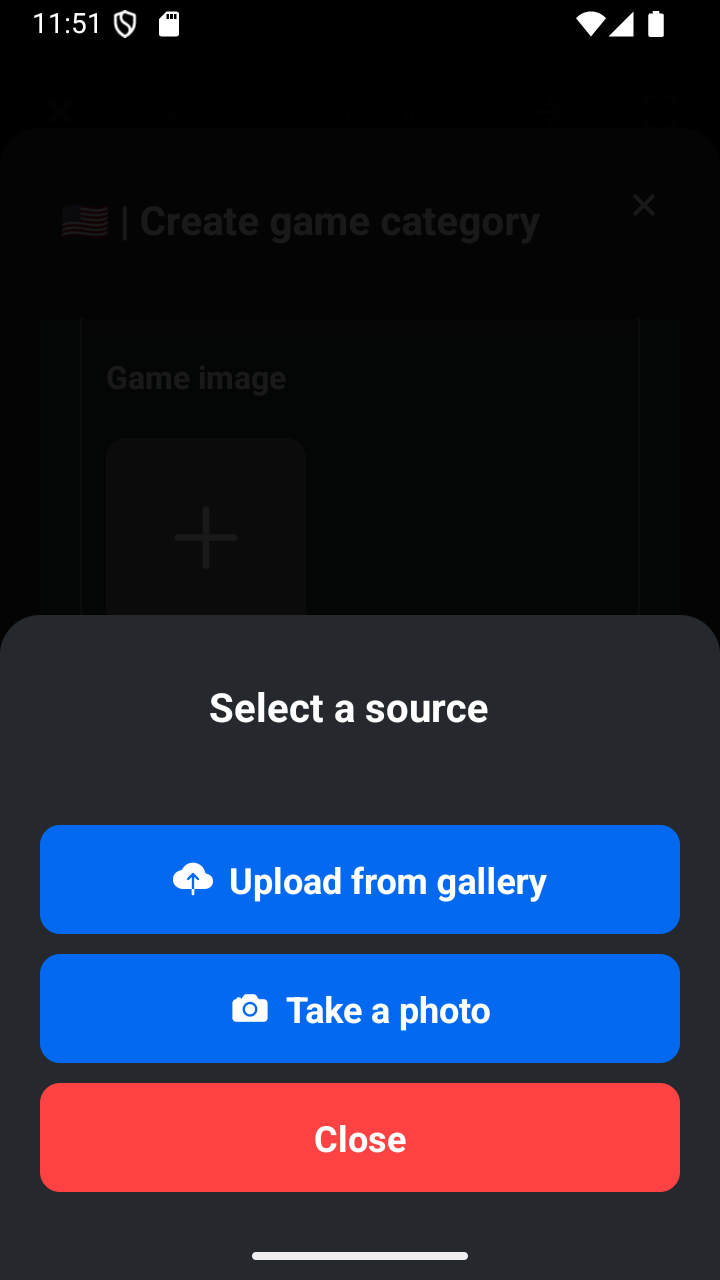
Tap the image plus button and choose the gallery. 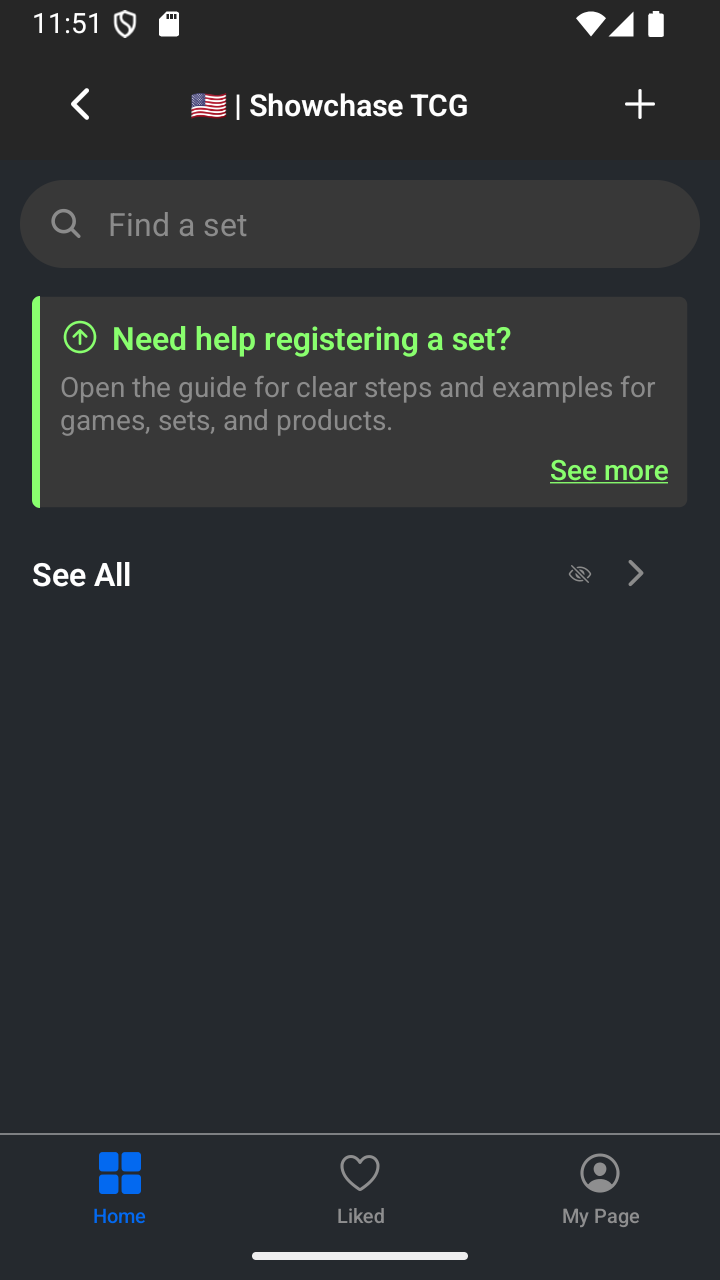
Create the game category. -
Create a set
On the game page, tap the + in the top-right corner to create a set. Type the name of the set; in this example, use Base collection (vol 1). In Translations, you can add every correct name in another language. Open Wiki details. Add the release date 2026/07/24 and set code Vol 1. Scroll down until you see Create set category, then tap it.
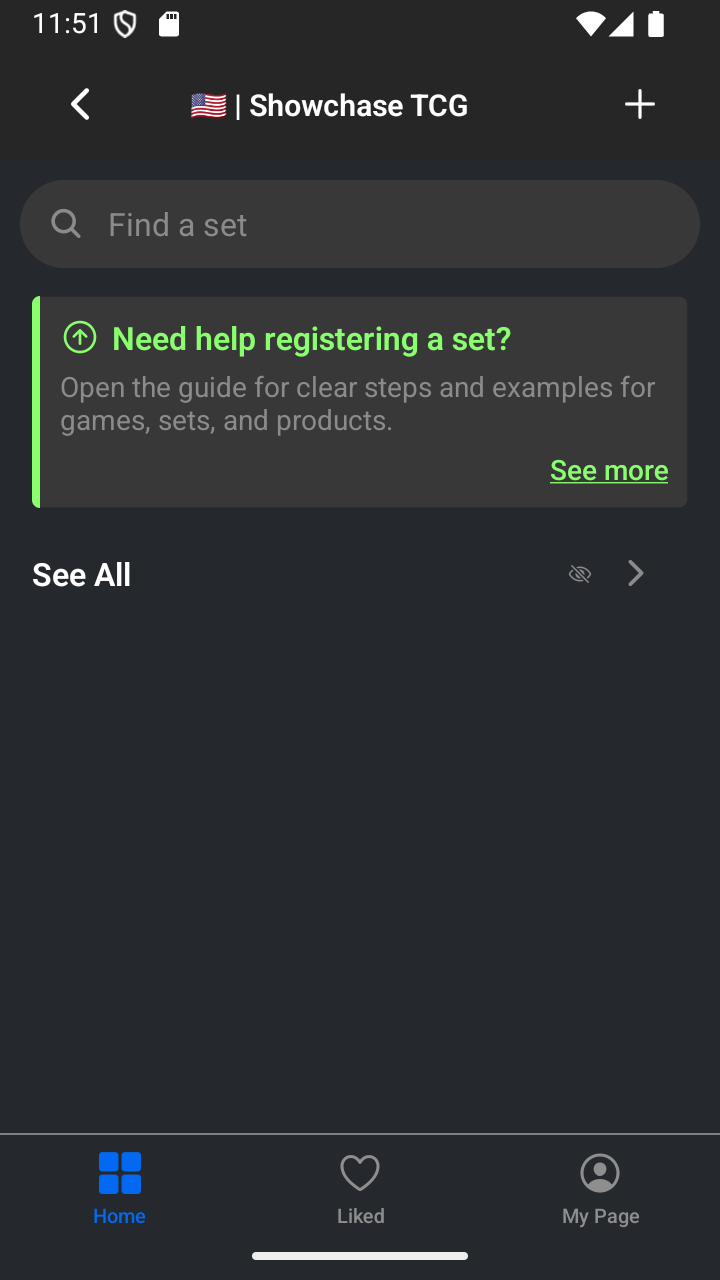
Tap the top-right plus button to create a set. 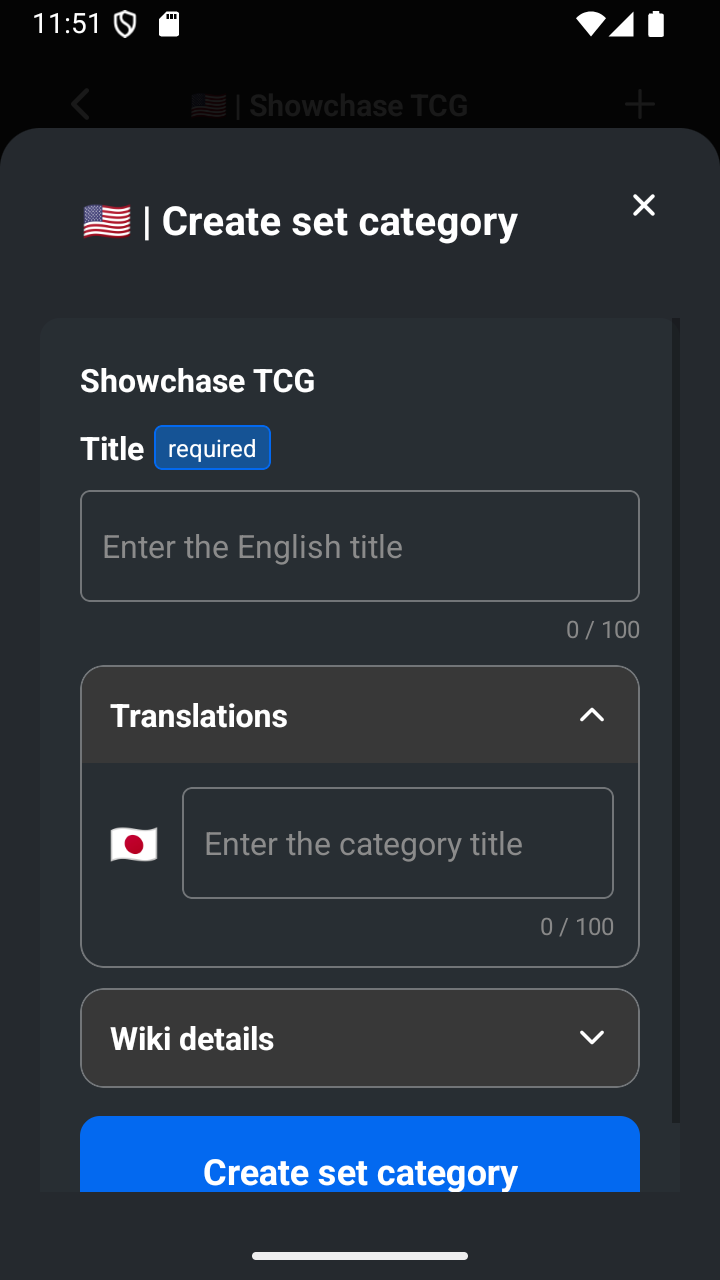
The set form opens. 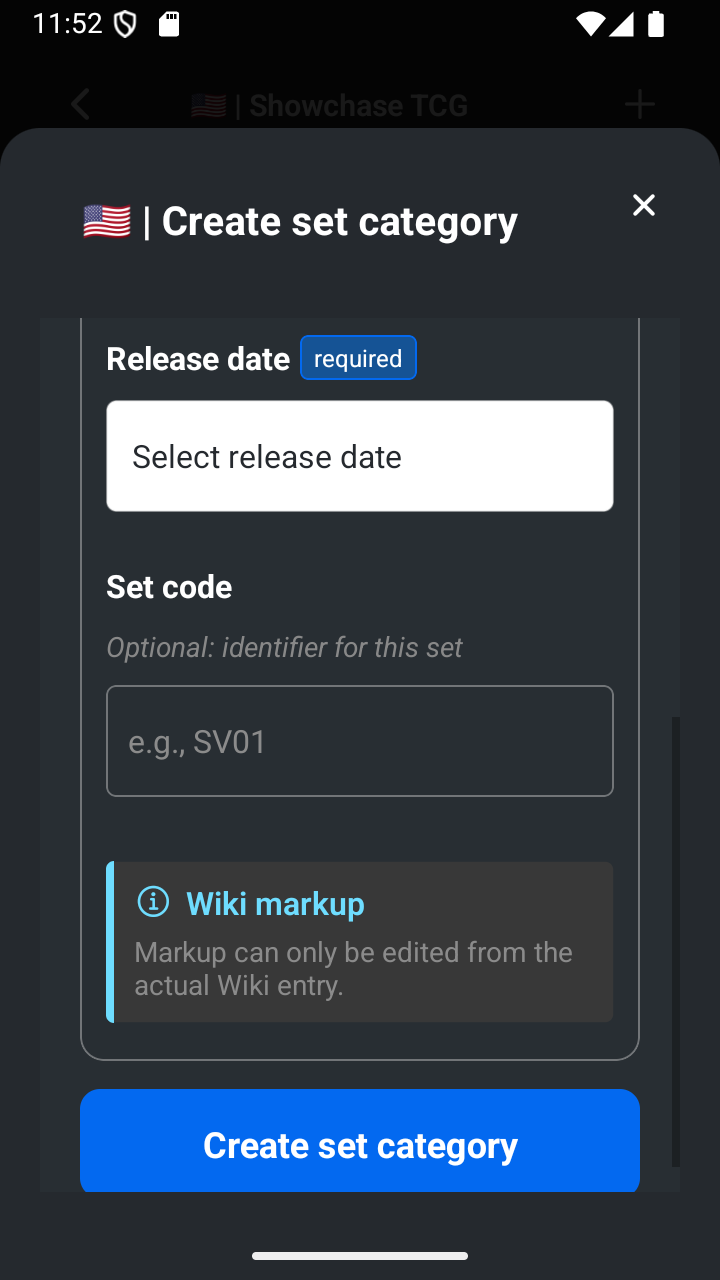
Add the set name and open Wiki details. 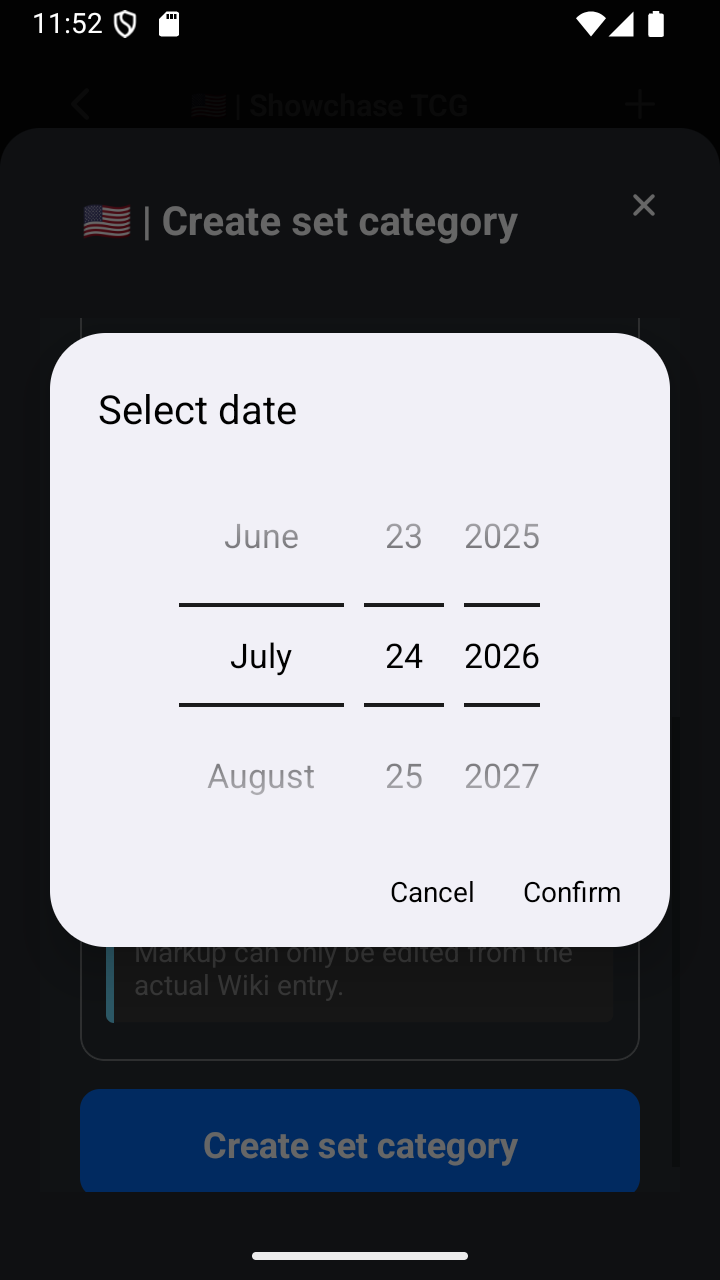
Choose the release date. 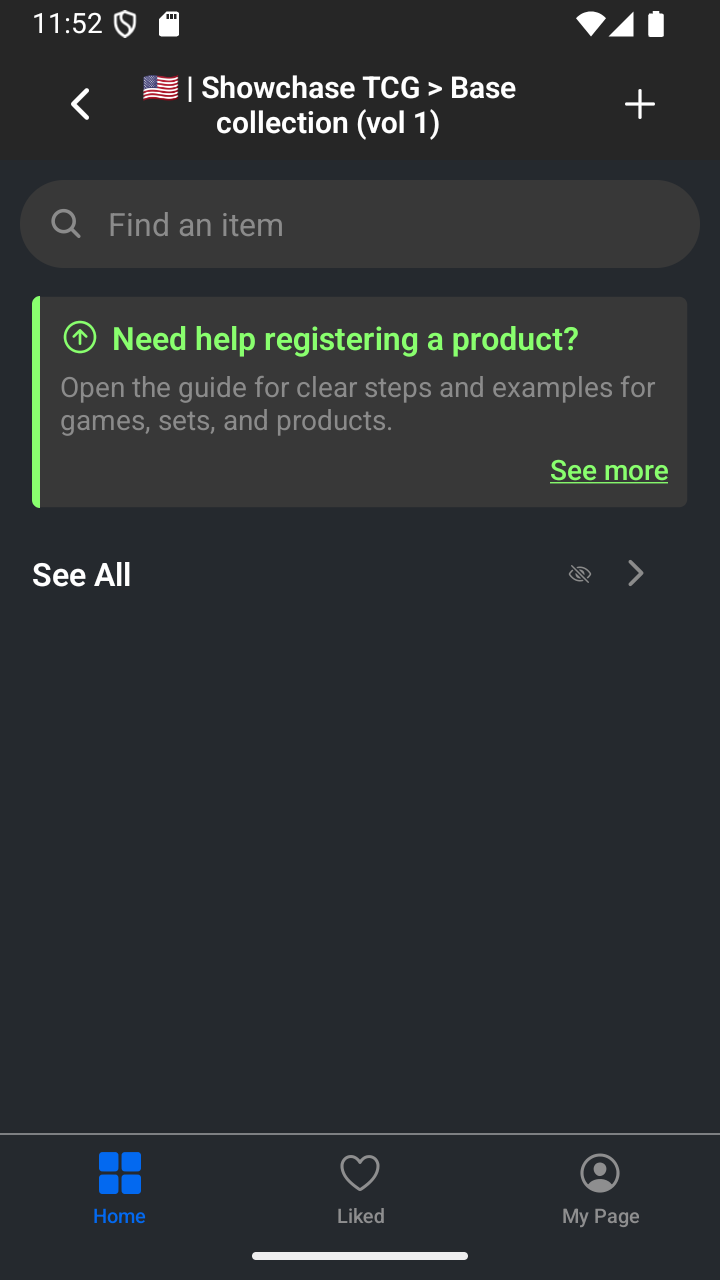
Add the set code and create the set category. -
Create a product
On the set page, tap the + in the top-right corner to create a product. Type the name of the product; in this example, use Koko the collector. In Translations, you can add every correct name in another language. Open Wiki details. Add card code 000/014. Scroll down until you see Create product category, then tap it.
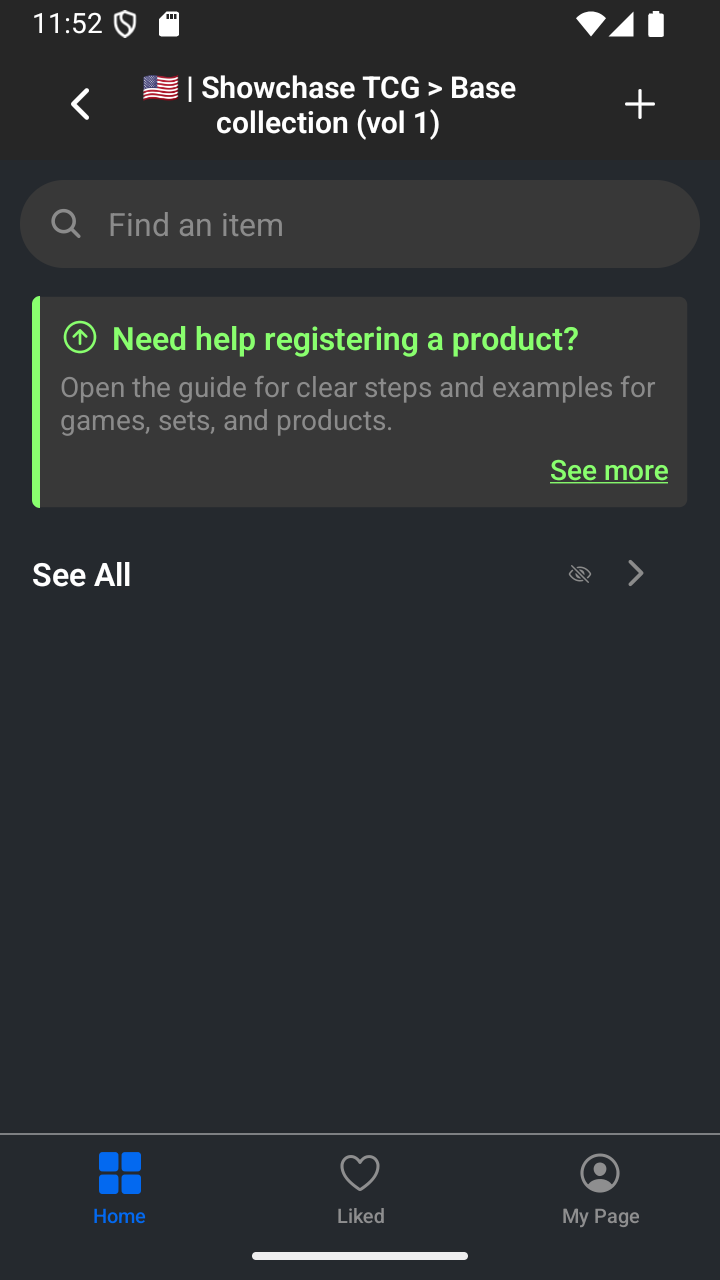
Tap the top-right plus button to create a product. 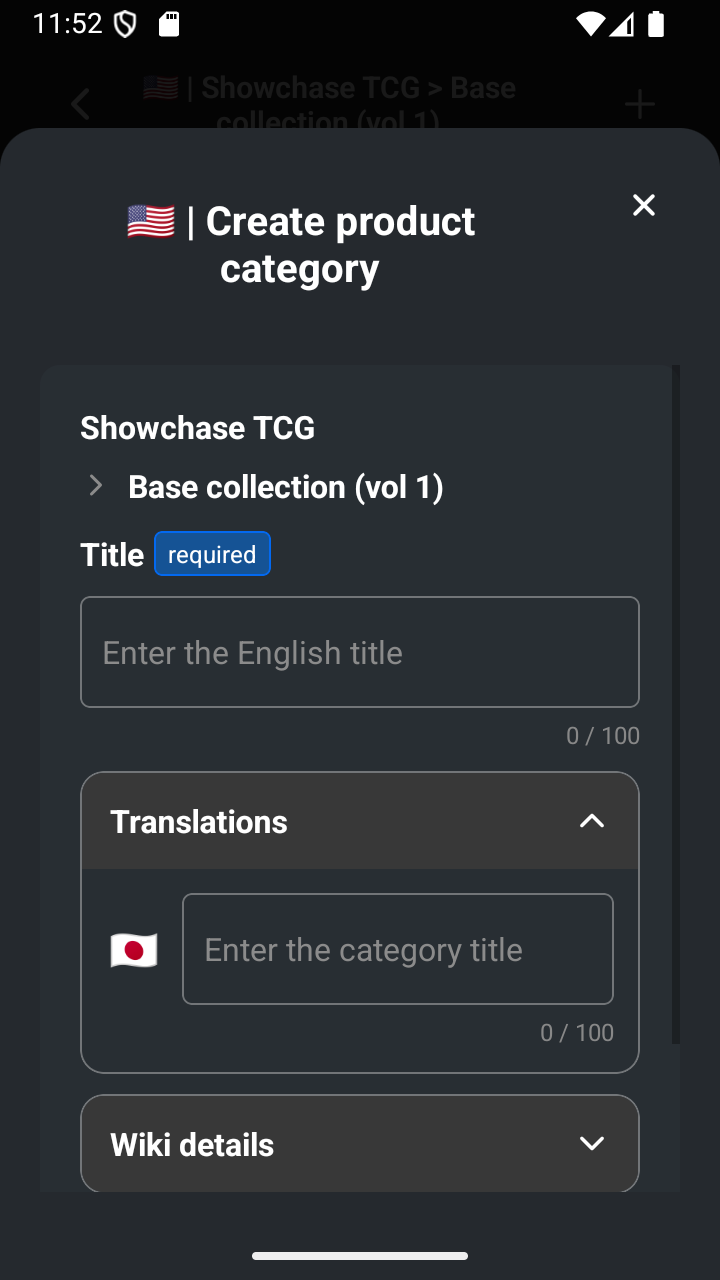
The product form opens. 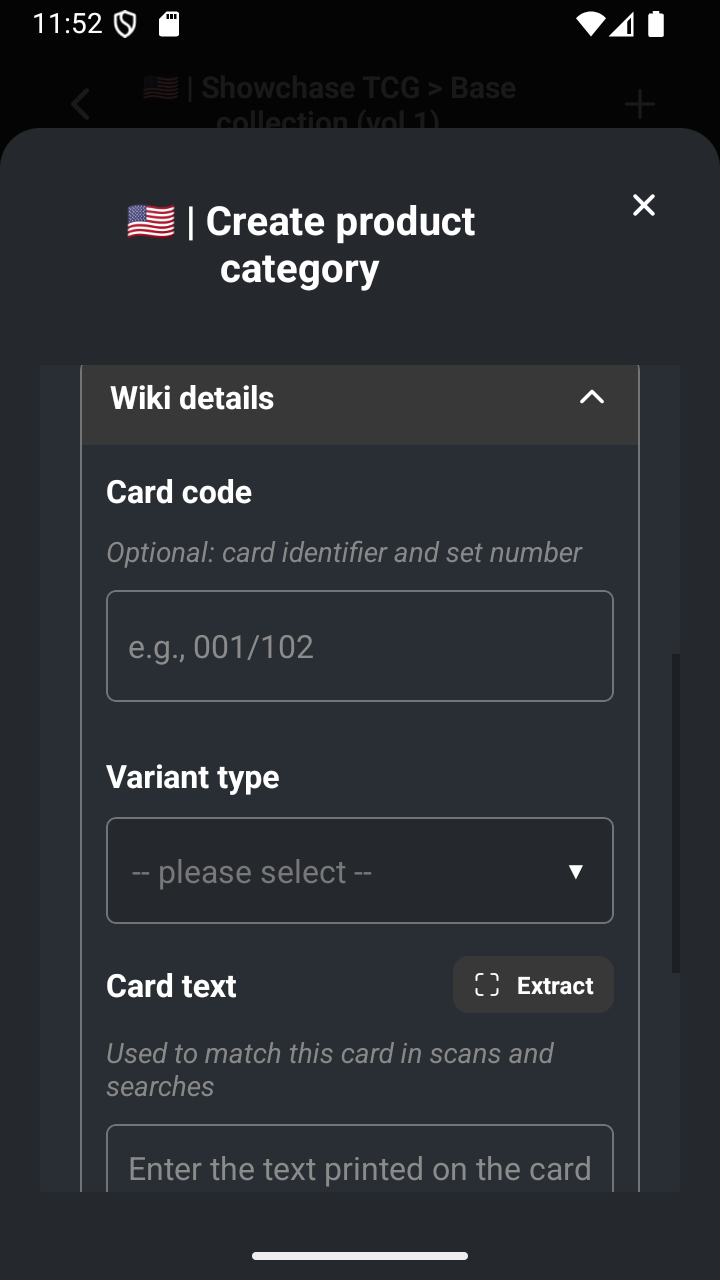
Add the product name and open Wiki details. 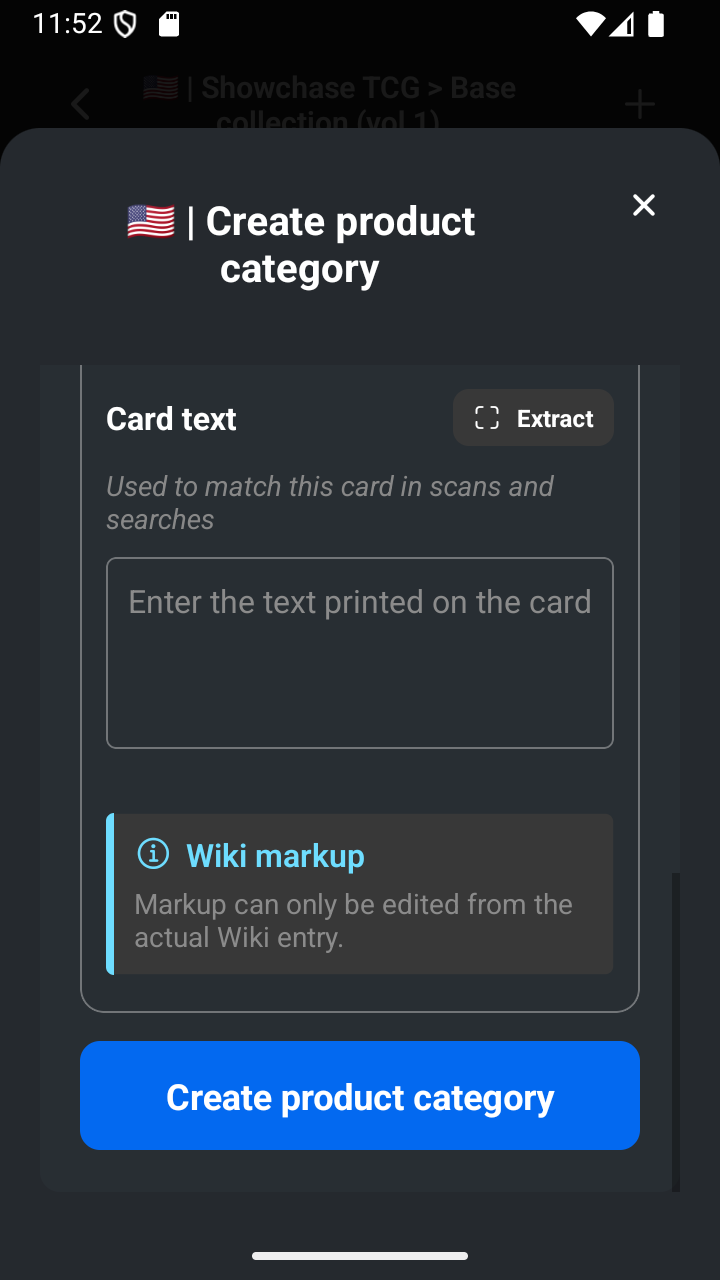
Add the card code and scroll to Create product category. 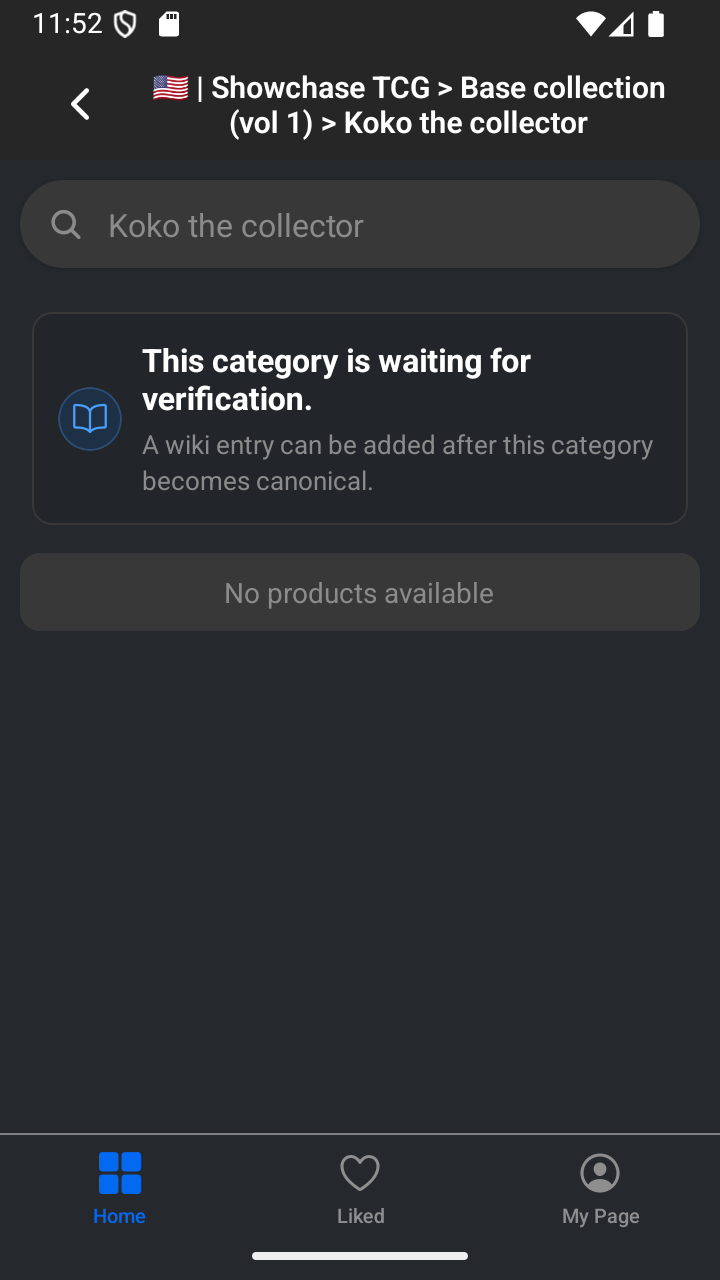
Create the product category.
You are done
You now know how a game, set, and product fit together. Before making a real category, check that its name, printing language, parent, and details are correct. Thank you for collaborating with Showchase and helping keep our shared knowledge base useful for everyone.
— The Showchase team